This article helps administrators troubleshoot Workspot Windows Client connection failures that occur after the connection reaches the gateway but disconnects immediately with Error Code 519. A customer disabled NTLM authentication on company-managed workstations. Adding the Workspot VDI subnet to the approved NTLM exception policy in Microsoft Intune restored connectivity.
Users could not connect to their Workspot virtual desktops through the Workspot Windows Client. The connection attempt reached the Workspot gateway, then failed before the desktop session was established. The same users could connect from personal devices or through the Workspot Web Client, which isolated the issue to the security configuration applied to managed Windows endpoints.
Issue: Users unable to connect to their Workspot VDI through the Workspot Windows Client. The connection reaches the gateway but disconnects immediately with Error Code 519.
Error message: This computer can't connect to the remote machine. Try connecting again. If the problem continues, contact your network administrator or technical support (Code: 519).
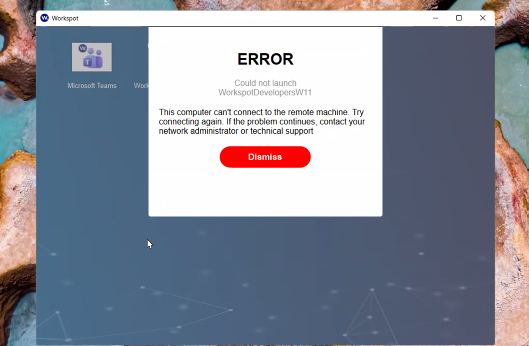
Cause: The endpoint security policy disabled or restricted NTLM authentication on company-managed workstations. The policy did not include the Workspot VDI network as an approved exception, so the Windows Client could not complete the authentication flow required to establish the RDP session. However, personal devices and Workspot Web Client connections were not affected.

Resolution: The issue was resolved by adding the affected Workspot VDI subnet to the customer’s NTLM exception policy and ensuring the updated policy applied to the affected users and endpoints.
The following changes were implemented:
Added the Workspot VDI subnet to the NTLM exception policy.

Added the affected users to the designated NTLM exception group.
Assigned the updated policy to the affected users.
Synchronized the Intune policy on the client devices.
After the policy was synchronized, users were able to connect successfully to their Workspot VDIs.
Troubleshooting Steps
Confirm the scope. Determine whether the problem affects only company-managed Windows devices or also affects personal devices.
Test the Workspot Web Client. If the Web Client succeeds, the virtual desktop and user assignment are likely available, and the issue may be specific to the managed endpoint policy or native-client authentication path.
Confirm the exact error. Capture the Workspot Client message and verify that the failure is Error Code 519.
Review endpoint NTLM policy. Check Microsoft Intune, Group Policy, or local security settings for policies that deny or restrict outgoing NTLM authentication.
Intune Policy: Microsoft Intune admin center → Devices → Windows → Configuration → Create/Edit policy → Settings catalog → Local Policies Security Options → Network security: Restrict NTLM: Add remote server exceptions for NTLM authentication
Group Policy (GPO): Computer Configuration → Windows Settings → Security Settings → Local Policies → Security Options → Network security: Restrict NTLM: Add remote server exceptions for NTLM authentication
Local Security Policy: Local Security Policy (
secpol.msc) → Local Policies → Security Options → Network security: Restrict NTLM: Add remote server exceptions for NTLM authenticationNTLM Outgoing Restriction: Computer Configuration → Windows Settings → Security Settings → Local Policies → Security Options → Network security: Restrict NTLM: Outgoing NTLM traffic to remote servers
Validate with the customer’s security team. If permitted, temporarily allow NTLM on a test device or apply a narrow test exception. Retry the same connection to confirm whether the restriction is causal.
Identify the Workspot VDI network. Obtain the IP address or subnet assigned to the affected Workspot resource pool.
Apply the exception and synchronize policy. Add the required VDI subnet to the approved NTLM exception policy, assign the policy to the affected users or devices, synchronize Microsoft Intune, and retry the connection.
Recommendation:
For users accessing desktops from the same Workspot resource pool, allow the VDI subnet rather than maintaining individual IP addresses.
Keep the exception narrowly scoped to the required Workspot VDI networks. Avoid broad NTLM allow rules that weaken the customer’s security baseline.
Assign the exception policy to all users or devices that require the Workspot Windows Client.
When adding a new Workspot VDI pool, validate that the new subnet is included before users begin testing.